


Microsoft continues to enhance the collaboration experience in Microsoft Teams, and this time, PowerPoint Live is getting two particularly interesting improvements: Refresh and Explain. These new features have a simple but essential goal: to help presenters and participants stay in sync, even when information is changing in real time.
The problem we all face
Let’s be honest: How many times have you started a presentation only to realize a few minutes later that some data had changed, a colleague had corrected a number, or a more recent version of the document had just been saved?
In the context of Teams meetings, this often results in a sequence that is awkward or embarrassing for the presenter:
- Stop sharing
- Close the presentation
- Reopen the file
- Share the document
- Find the right slide
In short, this is a moment when you often lose the audience’s attention.
Microsoft is directly addressing this issue with two new features in PowerPoint Live: Refresh and Explain.
Refresh: Update your presentation without interrupting the meeting
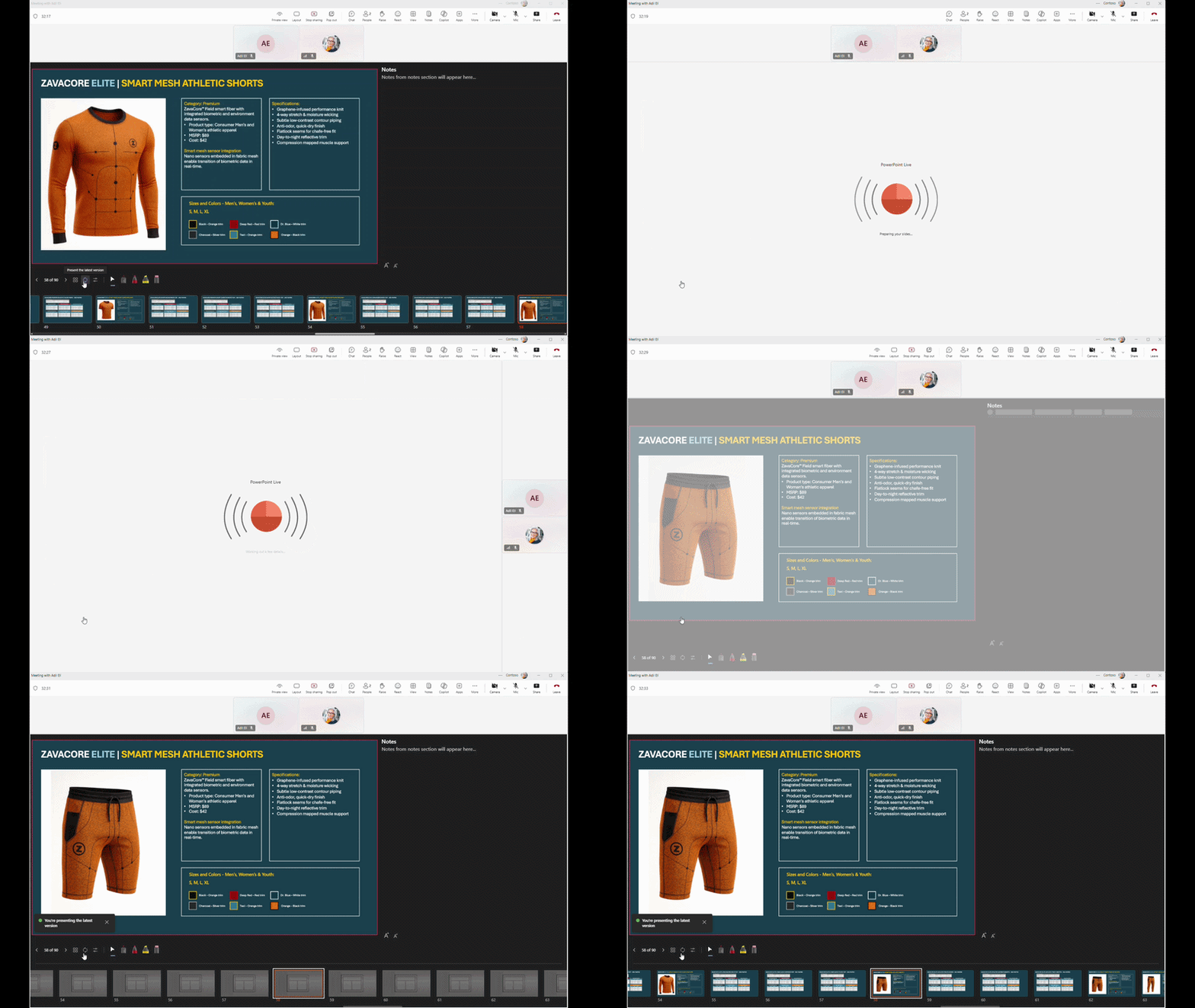
Imagine this: You’re hosting a webinar with several hundred participants. Just before it starts, you spot a typo in the presentation’s main title. A colleague corrects the document while participants are joining the meeting. In the past, you had to juggle multiple file versions. Now, a simple click on “Refresh” loads the corrected version without having to start from scratch.

The benefits are immediate:
 The presentation stays on the current slide No need to stop sharing All participants immediately see the updated version The meeting stays on track
Once synchronization is complete, a message confirms that you have the latest version of the document
Explain: When Copilot Becomes Your Acronym Translator
The other new feature is particularly interesting for participants.
We’ve all been to a meeting where a slide contained:
- a mysterious acronym
- an unfamiliar technical term
- a methodology specific to another department
- or worse yet… an acronym inside another acronym
In these situations, you generally have three options:
- interrupt the presenter
- search the Internet while the meeting is still going on
- nod, hoping to understand later
With the ” Explain” feature, a fourth option appears.

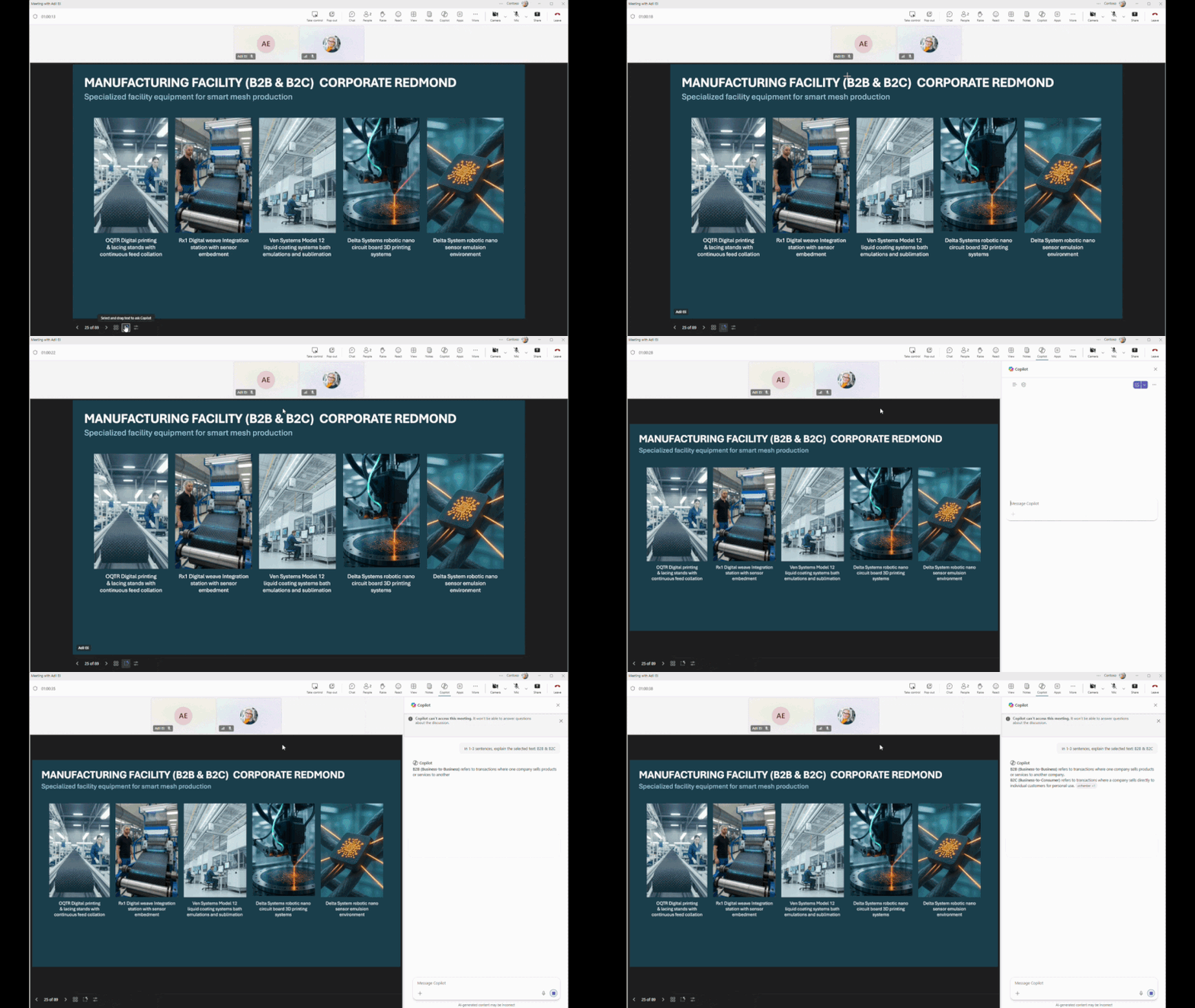
Participants can select text directly in PowerPoint Live and ask Copilot to explain the content displayed on the screen without interrupting the presentation. A contextual explanation then appears directly in the Copilot pane.
A subtle yet extremely powerful feature
At first glance, you might think these are just two small, minor improvements in PowerPoint Live.
After all, Microsoft isn’t announcing a revolution for Teams, a new Copilot agent, or a feature that will make headlines at every Microsoft 365 conference.
Yet, in hindsight, it’s often these small improvements that have the greatest impact on our daily lives.
If you regularly host meetings, client workshops, executive committee meetings, or even webinars in Teams, you’ve probably already experienced those moments when technology creates unnecessary friction. A presentation that’s out of date just a few minutes after it’s opened. A participant who hesitates to ask a question because they don’t understand an acronym or industry term.
That’s exactly where the new Refresh and Explain features make all the difference.
On the one hand, Refresh finally makes it possible to update a presentation in progress without disrupting the flow of the meeting. On the other hand, Explain uses Copilot to help participants better understand the content being displayed, without interrupting the presenter or slowing down the discussion.
The result? Meetings that run more smoothly, more dynamic presentations, and participants who stay engaged longer.
And honestly, after spending years helping organizations with their Microsoft Teams projects, I can tell you that eliminating a few everyday frustrations is often much more valuable than adding a spectacular new feature that no one will actually use. 
Availability
Good news: These two features are already available to PowerPoint users on Windows and PowerPoint on Mac. Microsoft doesn’t require any special setup to take advantage of the Refresh experience in PowerPoint Live. Simply use PowerPoint Live during your Teams meetings to enjoy these improvements.
For the Explain feature, a Microsoft 365 subscription and a Microsoft 365 Copilot license are required so that participants can get contextual explanations directly within the presentation.
 Sources
