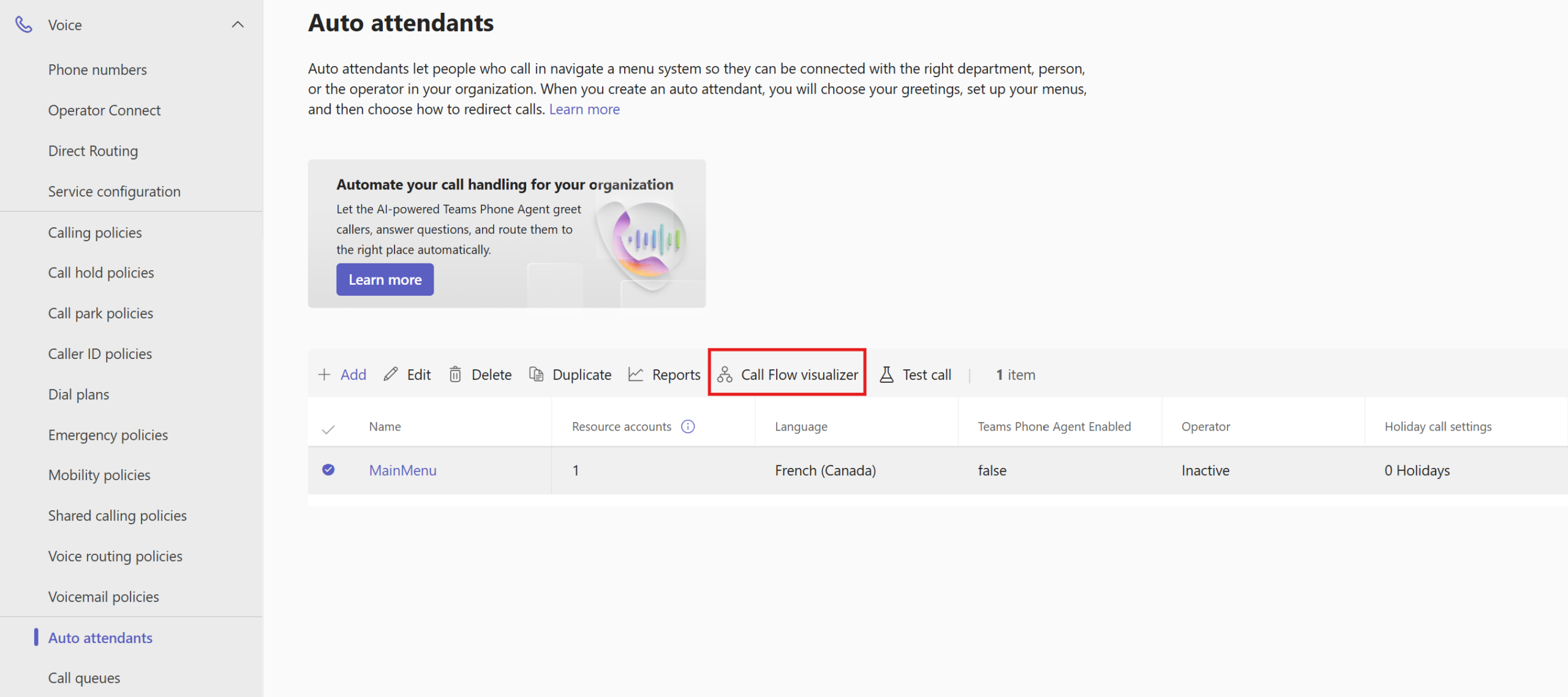


A visual overview of call flows
a {
text-decoration: none;
color: #464feb;
}
tr th, tr td {
border: 1px solid #e6e6e6;
}
tr th {
background-color: #f5f5f5;
}
What the Visualizer Displays
a {
text-decoration: none;
color: #464feb;
}
tr th, tr td {
border: 1px solid #e6e6e6;
}
tr th {
background-color: #f5f5f5;
}
When an administrator selects an Auto Attendant and launches the Call Flow Visualizer, they see a comprehensive view that includes:
- Associated Resource Accounts
- Configured welcome messages
- Foot traffic during business hours
- Traffic Outside Business Hours
- Holiday Scenarios
- Upstream and downstream routing relationships
- The various hierarchical branches of the appeal process
A valuable tool for documentation
a {
text-decoration: none;
color: #464feb;
}
tr th, tr td {
border: 1px solid #e6e6e6;
}
tr th {
background-color: #f5f5f5;
}
One of the most significant benefits is the reduced reliance on manual processes.
I couldn’t possibly tell you how many Visio diagrams I’ve created over the years during my Teams Phone migration projects. Enough to probably pay for a few extra licenses! Between auto-attendants, call queues, business hours, holiday scenarios, and multiple routing branches, these diagrams quickly became indispensable… only to become obsolete as soon as a change was made.
Even today, many organizations still maintain their own Visio diagrams or internal documents to explain their telephony architectures. Unfortunately, these diagrams often have a shorter lifespan than one might hope.
With the Call Flow Visualizer, Microsoft is finally automating this task. The tool acts as dynamic documentation based directly on the actual Teams configuration. Support teams, consultants, and administrators now have a constantly up-to-date view of how call flows operate, without having to pull out Visio every time a configuration changes. It’s not a technological revolution, but it’s certainly an improvement that will save time on a daily basis.
The consultant in me is almost nostalgic for all those hours spent drawing boxes and arrows… but the Teams admin in me is thrilled to be able to do without them!