In environments where several agents answer calls from the same queue, the absence of a shared history often resulted in :
- inconsistent follow-up between agents,
- duplicate (or forgotten) reminders,
- a fragmented view of queue performance,
- a difficulty for supervisors in ensuring proactive supervision.
Shared Call Queue History solves these problems by providing complete, collaborative traceability of every interaction managed by a Teams call queue.
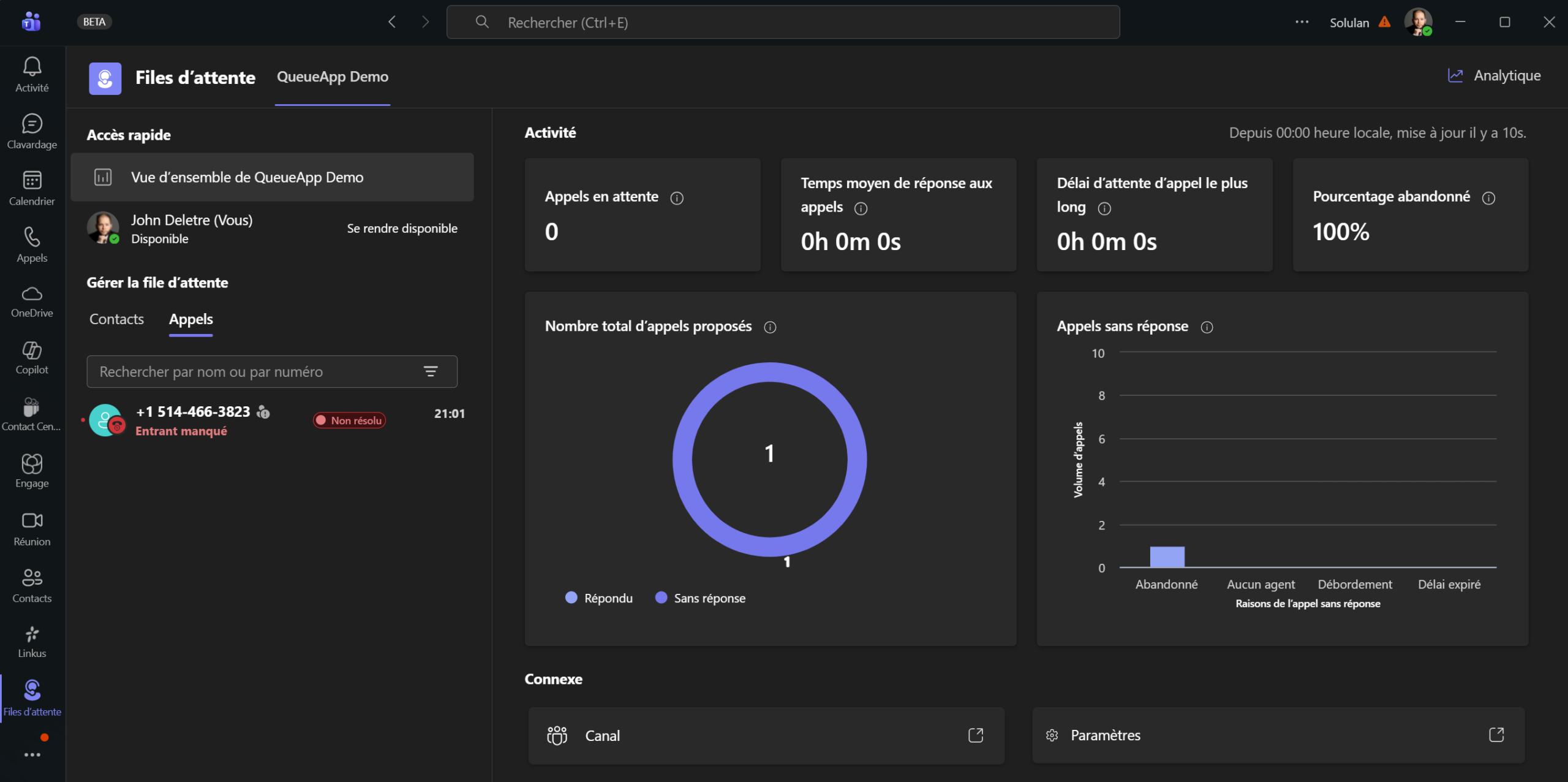
Once activated, the feature provides access to a centralized history of the following activities:
📞 Missed calls
- abandonment (the customer hangs up before the agent answers),
- calls expired or redirected by exception rules (timeout, overflow, no agents).
These events are now visible in the shared history, enabling efficient follow-up of any necessary reminders.
📲 Answered and outgoing calls
- calls answered by agents,
- calls made on behalf of the queue.
This visibility makes it possible to understand the entire customer journey and the work carried out by the team.
👥 Who can see the history?
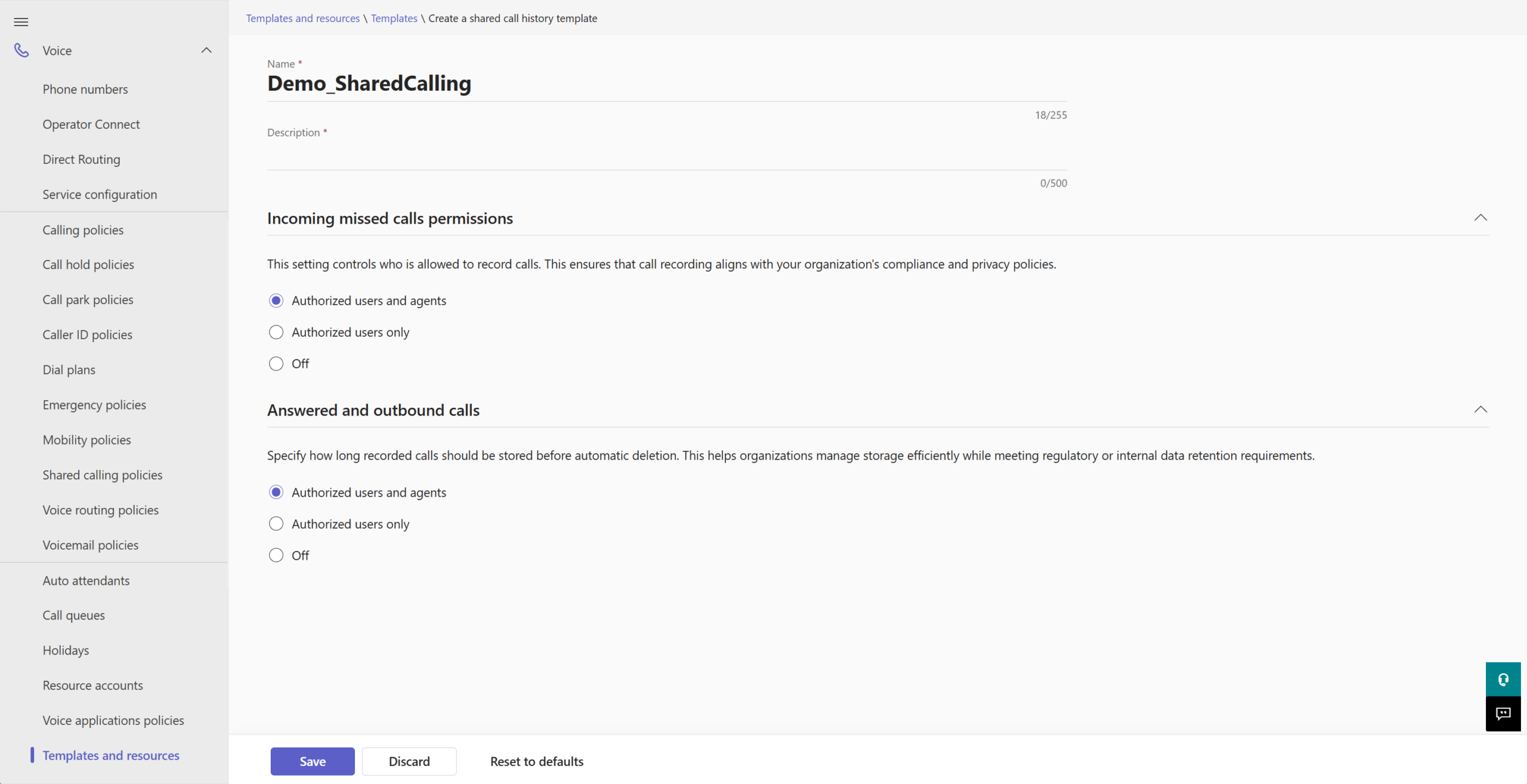
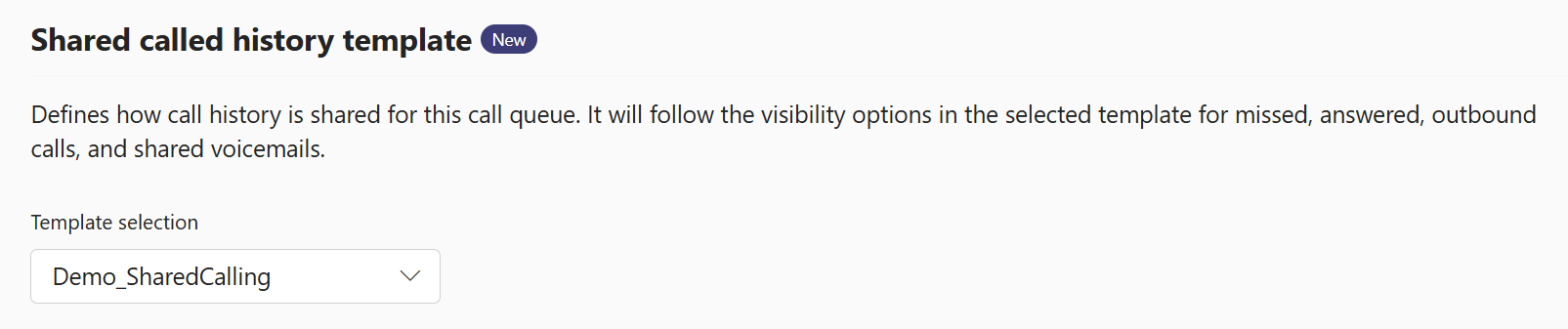
Access is controlled by Shared Call Queue History Templates, configurable via PowerShell or via the new sub-menu under the Voice tab in Teams Admin Center: templates and resources. These templates can be used to define :
- Who can see missed calls
- Who can view answered and outgoing calls
- Level of access for agents versus authorized users



 Current prerequisites and limitations
 Sources
